How to move from Excel to an online booking system
Short answer: keep an unchanged backup, separate services, staff, clients, and future appointments, then clean phone numbers and possible duplicates. Configure the new system before entering live data, test a small sample with every staff role, freeze the old sheet at a named time, copy the final changes, and switch every booking link together. Keep the old file read-only for a defined review period and prepare a clear rollback decision.
Tervita does not currently offer a self-service CSV or Excel bulk importer. There is no upload that automatically recreates a whole client database, appointment history, and future calendar. This guide therefore treats migration as an operational cutover, not as a promised automated import. It shows what must be ready for day one, what can remain in an archive, and how to avoid running two calendars by accident.
Has your salon outgrown Excel or Google Sheets?
A spreadsheet can be an excellent starting tool. It becomes fragile when it is expected to be the calendar, client record, cancellation log, consent register, reminder queue, and team workspace at the same time.
Plan a move when several of these signals appear:
- two people can edit a booking and nobody knows which version is final;
- colours, comments, or a separate chat are preventing double-bookings;
- the client's phone number, service, and next visit live on different tabs;
- rescheduling overwrites the old value without a reliable trail;
- reminders depend on one person remembering to send them;
- every employee can see the full file even when they only need their own work;
- the owner cannot quickly count upcoming work, cancellations, or no-shows;
- clients must call or message because there is no live booking page.
Do not delete the sheet when you spot these signs. Give the transition an owner, a target date, and measurable launch criteria. If you are still comparing tools, use the salon scheduling software checklist and define the experience you want with our online booking guide for salons.
Define a successful first day before exporting anything
The goal is not to copy the largest possible number of rows. The goal is for each client to arrive at the right time, for staff to trust one calendar, and for the business to keep taking bookings safely.
Create four workstreams:
| Workstream | Fields that matter | Launch priority |
|---|---|---|
| Services and staff | name, duration, price, bookability, assigned staff, working hours | before the pilot |
| Future appointments | date, start and end, time zone, service, staff, client, status | before cutover |
| Active clients | necessary name, phone, email, language, and useful operational note | in controlled batches |
| Historic records | completed visits, old cancellations, notes, and reports | archive or separate project |
Future appointments carry the highest immediate risk. A missed booking tomorrow affects a real client; a five-year-old completed visit rarely blocks launch. Move the near-term calendar first. Keep older material in a restricted archive only where you can explain its purpose and retention period. Every extra field creates more cleaning, privacy review, and reconciliation work.
Write acceptance checks before touching data. For example: every appointment in the next eight weeks has a staff member, service, start time, end time, status, and reachable client; two people have compared the next seven days line by line; every role has completed a test; and only the new calendar accepts bookings after the switch.
Build an export pack without damaging the source
Save the original workbook in its native format, such as salon-archive-2026-07-13.xlsx, and make it immutable. Create a separate working copy for cleanup. Limit access to named people and never expose client data through a public sharing link.
Google documents downloading a Sheet through File → Download and choosing a format in Google Docs Editors Help. Microsoft notes that a CSV export contains only the active worksheet and that formatting and unsupported workbook features are lost (Excel CSV guidance). Preserve the native workbook as evidence of the source, then export and inspect each meaningful sheet separately.
Do not rely on cell colour, merged cells, formulas, or undocumented abbreviations to carry meaning. Use simple headers. A client table might contain first_name, last_name, phone, email, language, and note. A future-appointment table might contain start_at, end_at, timezone, service, staff, client_phone, and status.
Make dates unambiguous. 04/05/2026 can mean 4 May or 5 April. Confirm it against the source and write 2026-05-04; keep the operational time zone explicit, such as Europe/Tallinn. Preview names containing Estonian, Russian, and other non-ASCII characters. If characters are corrupted, create a correctly encoded working copy without overwriting the original. Microsoft provides separate instructions for opening UTF-8 CSV files in Excel.
Normalise phone numbers and review duplicates
Store phone numbers as text. Spreadsheet software may remove leading zeroes, display long values in scientific notation, or change significant digits when a number is treated as numeric. Microsoft describes these risks and the Text option in its guidance on leading zeroes and long numbers.
For matching, use an international form: +, country code, and subscriber number, for example +3725551234. ITU Recommendation E.164 defines the international numbering structure. Do not automatically prepend +372 where the country is uncertain. Put those records into a manual-review queue instead.
A practical duplicate review order is:
- an exact, verified email match;
- the same E.164 phone together with a compatible name;
- a human comparison of names, contacts, and future appointments;
- a separate
needs_reviewlist for every uncertain pair.
Never merge solely because names are similar. Two people may share a name, while family members may share a phone. If records have different notes or future bookings, a staff member must decide what represents the same person and document which record was retained.
Keep service communication separate from marketing consent
A phone number collected to arrange an appointment is not automatically permission to send promotions. Do not turn an old newsletter=yes cell into proven consent unless you can show what the person agreed to, for which purpose, when, through which source, and whether they later withdrew.
GDPR Article 5 covers purpose limitation, data minimisation, accuracy, and storage limitation. Under Article 7, a controller relying on consent must be able to demonstrate it. Email and SMS direct marketing also falls under Article 13 of the ePrivacy Directive and its national implementation. A safe migration rule is to leave an unproven marketing status unknown or off. Being an existing client is not, by itself, evidence of consent.
Treat appointment confirmations and promotional campaigns as separate purposes. Where reliable consent evidence exists, preserve its scope, timestamp, source, notice version, and withdrawal or opt-out status. Where it does not exist, do not manufacture a date or source during cleanup.
Review free-text notes too. A scheduling preference may help staff, while a casual personal comment may not belong in the new system. Allergy, diagnosis, and other health information can be special-category data under GDPR Article 9 and should not be copied “just in case.” Tervita's client records and consents guide explains the product workflow; our GDPR guide for salons and clinics provides broader context. This is general operational information, not individual legal advice.
Is your migration file ready?
Tick an item only after the migration owner has checked the result. Selections are not saved after you close the page.
Run the cutover through five controlled gates
Gate 1: configure the operating model
Create services, durations, prices, and bookability before entering clients. Add real staff with the appropriate roles, then configure working hours, breaks, and days off. Follow the Tervita guides for services and catalog, team and roles, and working hours. A wrong duration or schedule will otherwise be repeated in every appointment you enter.
Gate 2: prove the setup with a small sample
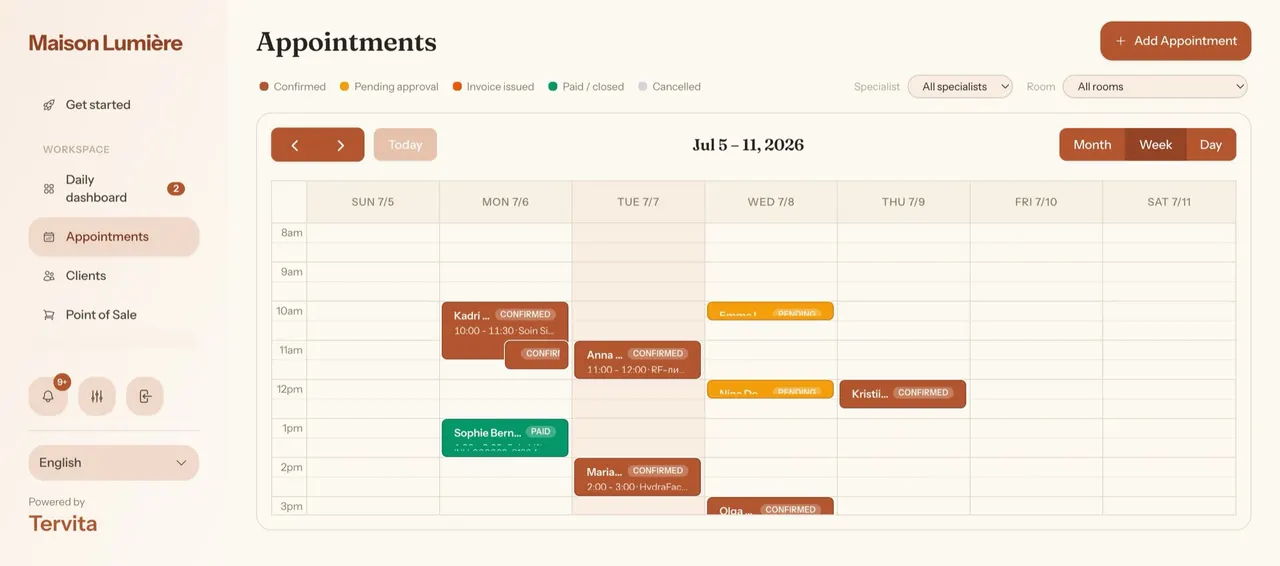
Choose five to ten future appointments covering different staff, short and long services, a client without email, a cancellation, and a reschedule. Enter them manually and compare every field to the source. Fix configuration errors before doing more work. The first appointment guide shows the core calendar flow.
Gate 3: rehearse with the whole team
Every role must create an appointment, move its time or service, cancel it, and find the client record. Test on both desktop and phone. Then act as a client on the public page: choose service, staff, time, enter contact details, and confirm. Review the booking settings guide so the confirmation, cancellation, and rescheduling behaviour matches your policy.
Do not pass this gate because the owner completed the test alone. The receptionist and practitioners often use different screens and catch different gaps. Record each issue, its owner, and whether it blocks launch.
Gate 4: move future appointments, then freeze the source
Transfer the nearest future appointments first and work forward by date. Check staff, service, start, end, status, and client contact. Use a second-person reconciliation for the next few days because that is where an error has the shortest recovery time.
Set an exact freeze moment, for example Monday at 19:00. The old spreadsheet becomes read-only at that moment. Compare it with the working export and enter only bookings or changes created since the first copy. This final delta should be small and visible; it is not a second full migration.
Gate 5: switch every booking channel together
After reconciliation, update the booking link on the website, Instagram, Google Business Profile, and message templates in the same window. Only one system should accept new appointments. Name an owner to check the next few days twice daily and log any discrepancy until the process is stable.
Prepare a rollback without creating a second live calendar
Keep three controlled artefacts: the untouched source, the cleaned working copy, and a log of records entered after the freeze. If a critical problem appears on launch day, pause new online bookings, appoint one decision-maker, and verify future appointments against the read-only source. Then make an explicit choice: fix the new workflow or temporarily return to the previous one. Quietly writing to both systems makes later reconciliation impossible.
The archive is not permanent by default. Record its owner, permitted users, purpose, review date, and deletion or anonymisation rule. Do not leave a client CSV in a staff member's Downloads folder, email it without an agreed secure process, or upload it to an arbitrary file converter.
What can you realistically migrate to Tervita today?
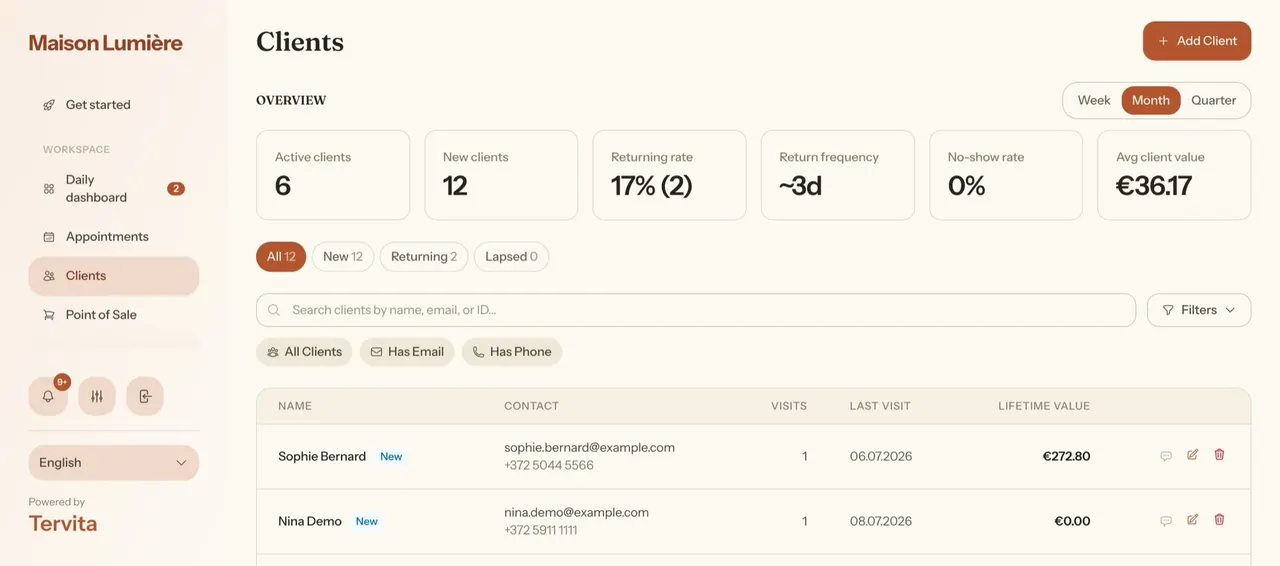
You can configure services, staff, working hours, the public booking page, future appointments, and client records in Tervita. There is currently no self-service CSV/XLSX bulk importer and no automated button for moving all Excel history. For a small dataset, the safest route is to enter near-term appointments manually and create or complete client records when they become operationally relevant.
For hundreds or thousands of rows, contact support@tervita.ee before committing to a date. We can discuss the volume, data quality, and an agreed realistic plan. This is not a promise of an automated import or complete history migration. You can create a Tervita account and run a one-staff, one-week pilot before choosing the cutover date.
Frequently asked questions
Can I upload my Excel client list to Tervita as a CSV?
Not through a self-service bulk importer at present. Use the cleaned file as a reconciliation source, enter launch-critical future appointments manually, and discuss a large dataset with support before setting a cutover date. Do not send client data until the scope and a secure channel have been agreed.
Should every historic appointment move to the new system?
Usually not for launch. Correct services, staff, future appointments, and necessary active-client details are more important. Older history can remain in a restricted archive with a documented purpose and retention period. Move a specific useful fact manually when there is a real need instead of copying every old row.
How long should the old spreadsheet remain available?
There is no universal retention period. It depends on the data, the purpose, and applicable obligations. Set a review date, keep access restricted and read-only, and delete or anonymise the file when its justified purpose ends. “Keep everything forever just in case” is not a sound storage-limitation policy.
For a small lash or brow studio, rehearse the move with the studio workflow checklist before replacing the shared spreadsheet. Compare the price for your bookable specialists using the team that will actually accept bookings.