Your first appointment: the calendar and creating appointments by hand
The calendar is where every appointment lives - the ones staff create by hand and the ones clients book online.
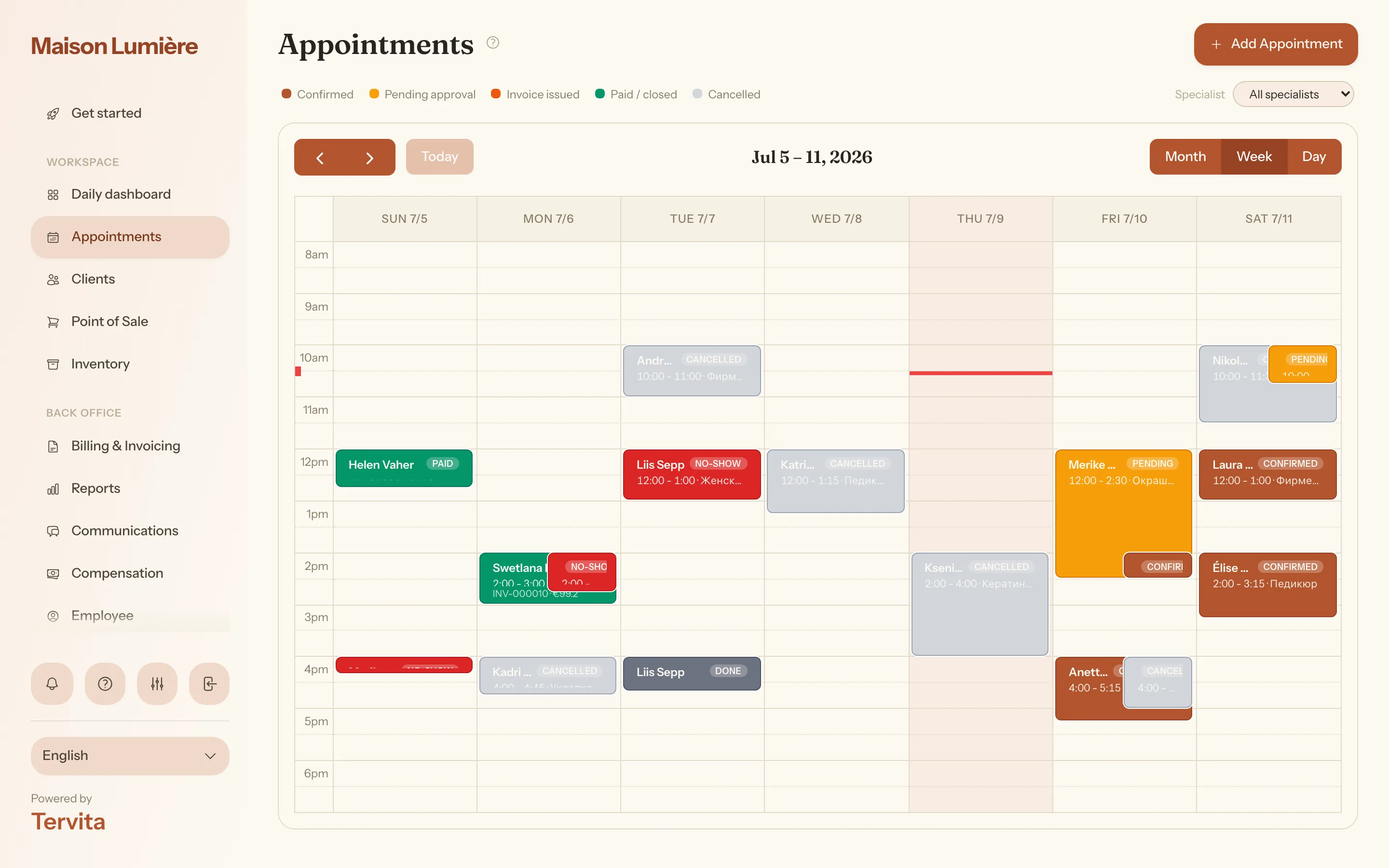
Open the calendar
Click Appointments in the sidebar. Desktop opens in Week view, phones in Day view; switch to Month from the toolbar, or move with the previous/next/today controls. The grid covers 08:00-19:00.
Two dropdowns narrow the view: Specialist (default All specialists) and Room (default All rooms, shown only if your clinic uses rooms). Picking a specialist greys out the times they are not working.
Add an appointment by hand
- Press Add Appointment in the page header, or click and drag an empty slot, which pre-fills the times.
- Search for the client under Client. No match opens a New client form inline; a name is enough - phone and email are optional - and the client is created together with the booking.
- Choose the Employee / Doctor, check Start Time / End Time, and add Notes (Optional) if needed.
- Tick what's covered under Services / procedures (one or more) - the end time recalculates from the combined duration but stays editable. If a service needs a Cabinet / chair or Equipment, pick one; double-booking a specialist, room or equipment is blocked.
- Press Add Appointment to save.
Client and Employee / Doctor are required, and end time must follow start time. An appointment made this way saves as Confirmed right away - staff made it directly, so there is nothing for the client to approve.
Edit or reschedule
Click any appointment to reopen it. Edit mode adds a client header with a Client card shortcut, plus Details, Procedures and Invoice tabs (Invoice only once one is issued). Save Changes never alters the status.
To reschedule, drag or resize the appointment. An Update appointment? dialog shows Before and After - Confirm saves it, dismissing keeps the original. Moves outside 08:00-19:00 or under 15 minutes are rejected first.
What the statuses mean
The legend shows Confirmed, Pending approval, Invoice issued, Paid / closed and Cancelled; individual appointments can also show Done.
Pending applies only to online bookings awaiting approval - a staff-made appointment never carries it. A new one raises a New online booking toast (View / Confirm) on any dashboard page, plus a counter badge next to Daily dashboard in the sidebar. Open it for Confirm booking or Reject - rejecting cancels it and frees the slot; there's no separate cancel step.
Once confirmed, the drawer instead offers Send to POS and Issue invoice (a second click asks Confirm & issue invoice); once paid, the calendar shows Paid.
To cancel an appointment, open it, press Cancel appointment and confirm. It stays in the calendar with the Cancelled status and the slot becomes available. In the confirmation you choose whether the client gets an email or SMS; for an appointment whose time has already passed, nothing is sent unless you tick a channel. A past appointment that's already paid or invoiced can't be cancelled - mark it as No-show or cancel the invoice first.
Good to know
- Month view shows only time and client name; hover any appointment for the full details.
- Editing time, services or notes never resets an appointment's status.
- The drawer's "Cancel" button stays in English regardless of your interface language.
- See Set your working hours and Services and catalog for related setup.