Services and the catalog: add and organize the services clients can book
Services are what clients book appointments for. The catalog is a separate, unrelated list of physical products you can stock and sell. Both live in the Services & products section of the sidebar, alongside Inventory.
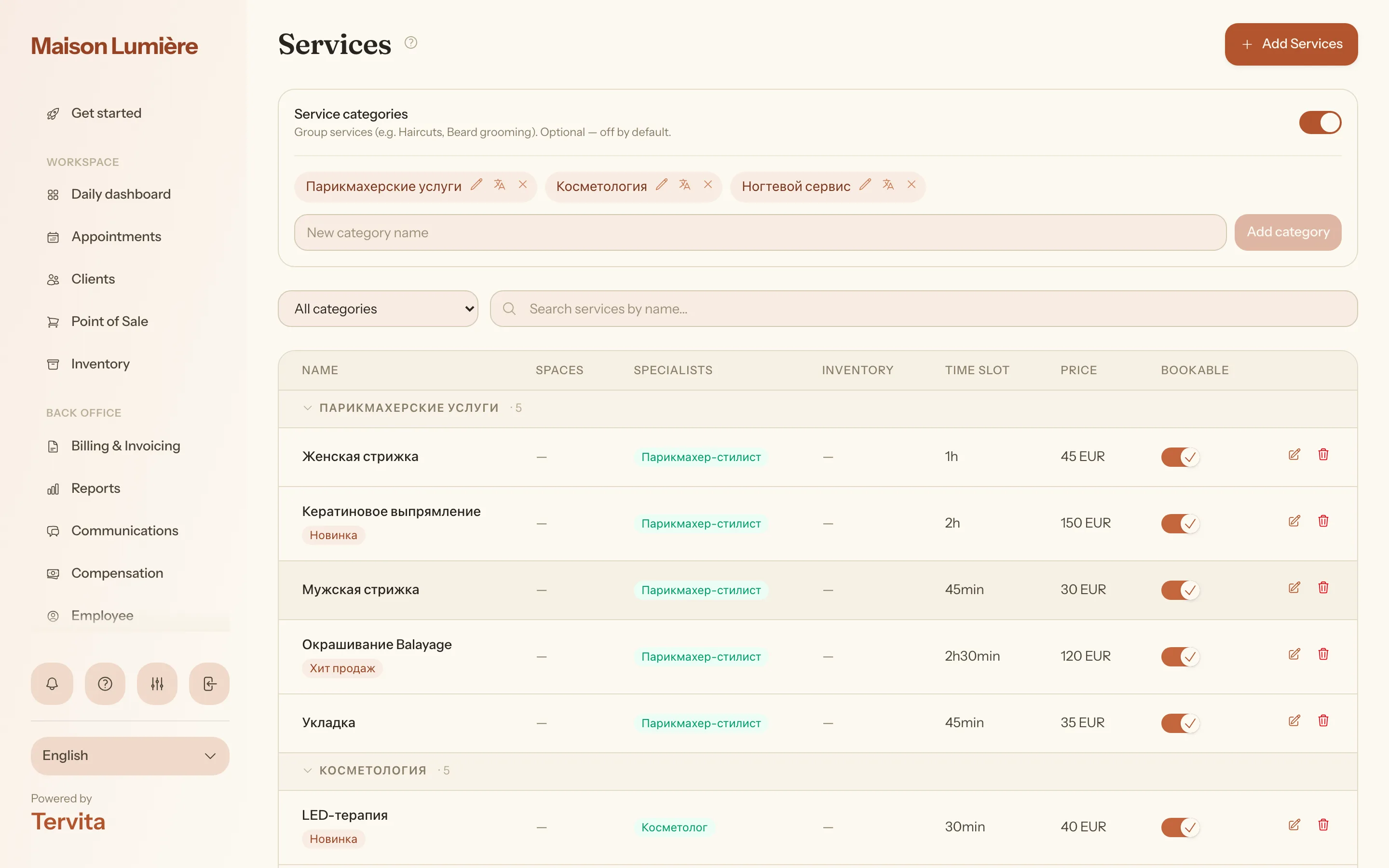
1. Add a service
- Open Services and press Add Services. This opens the Add New Service dialog. (An existing service opens a read-only detail panel first; its edit button opens the same form as Edit Service.)
- Fill in Name, Description, and, if categories are on, a Category. Set Duration in hours and minutes, and an optional Price (€) - empty shows no price, 0 shows as Free.
- Pick Spaces (rooms), Equipment, Specialist Types, and the Specialists who perform it (from Team and roles) - leave empty for Any specialist. Add Tags and Required Inventory Items. Missing a room, equipment, or a specialist type? Add it right there, without leaving the form.
- Press Add Service (or Save Changes). It's ready for your first appointment.
Set a different price or length for each specialist
When you select named people under Specialists, a Price and length per specialist table appears below the list. Enter a personal price, a personal duration in minutes, or both for anyone whose service differs from the default. Leave either field empty to inherit the service's own value.
The service details panel shows the saved personal values and labels inherited ones as the service default. On the public booking page, clients see a price range when specialists charge different amounts. At the specialist step, Tervita compares the exact price or duration only when the available specialists differ; after a client picks someone, the chosen specialist's values are used for the quote, available times, confirmation and payment.
Three independent switches
- Active - the master switch. Off hides the service everywhere: no calendar, no till, no online booking. Think archiving.
- Bookable - whether clients can self-book it on your public booking page. Active but not Bookable: staff can still add it manually, clients can't. Flip it directly from the Bookable column in the table.
- Show price online - whether the price shows on the booking page; off still shows the service, just without a price.
Both Active and Bookable must be on for a service to reach the public booking page at all.
Booking availability
The optional Booking availability panel offers a Minimum lead time (days) buffer and a fixed Bookable from date, both optional and independent; leave blank for no restriction.
Categories
Optional and off by default. Turn on Service categories above the search bar to group services (e.g. Haircuts, Beard grooming); services without one fall under Uncategorized. Deleting a category clears it from services, without deleting the services.
Reordering services
You can rank services inside their category. On a computer, drag the handle to the left of the service name, or click the handle and use the up and down arrow keys. On a phone, use the up and down buttons on the service card, next to edit and delete. Your booking page shows services in exactly this order within each category - categories keep their own order too, and are draggable the same way. Existing services start out in alphabetical order.
The product catalog
Catalog is unrelated to Services: a master library of physical products (Brand / line, Supplier, Cost, Purchase, Sale price, VAT, pack size) you can stock. Press Add product, then To stock on a card to add it as a real inventory item with a quantity and low-stock threshold - the catalog entry itself carries no stock. Products group by brand, with a trailing Other for products without one.
Good to know
- Deleting a catalog product removes only the catalog entry - inventory already created from it stays.
- Per-locale name/description overrides are optional, in a collapsed "Translations" panel.
- Services and the catalog are separate features that just sit next to each other in the sidebar.